
TunerSync for Android
by Dotson Tuning
Move Accessport files, send logs to your tuner and calculate your next ethanol blend. Dotson Tuning customers can keep project maps, messages and updates here too.
Get it on Google PlayAccessport files
Browse maps, datalogs, logging presets, startup screens and screenshots. Copy files between the AP and your phone. No Dotson Tuning project is required for these tools.
Work with your tuner
Save your tuner’s email, verify your reply address and send selected logs directly from the app. Import a map attachment and choose when to copy it to your AP. Replies arrive in your email inbox.
Free ethanol calculator
Save your confirmed tank size. Enter the amount in your tank and your desired fill level as percentages, then calculate how much of each fuel to add in gallons or liters.
Current public release
Dashboards and logging in 1.0.0
Live dashboards and logging for supported Subaru vehicles. Use a supported vehicle profile and keep the Accessport connected to both your car and Android phone by cable.
- Watch live readings and record logs. Choose Datalog / Dash, select your vehicle and logging channels, then use Live connect and Start logging. Use Stop & save to save the recording; live readings can continue.
- Build your dashboard. Move and resize numbers, dials, horizontal or vertical bars, and live graphs across up to three screens. Customize names, units, colors and gauge ranges. Save, load or copy widgets and save complete dashboards.
- Set your warning limits. Choose low and high limits with separate warning colors and either a flashing or solid widget background.
- Keep recordings together. Save CSV logs in your chosen TunerSync/Logs folder, then send them to your project or email your tuner. Recordings include date and time; optional phone GPS adds location and speed with your permission.
- Make file setup easier. Crop, position and zoom an Accessport startup picture before applying it. Open your project’s logging preset and its loading guide from Overview.
- Find help and controls. Use consistent menus, labeled fields and the offline user guide. Large-text widget settings use short pages, and the connection status includes its current state for screen readers.
Inside TunerSync
Version 1.0.0
Swipe to explore. Tap a screenshot to enlarge.
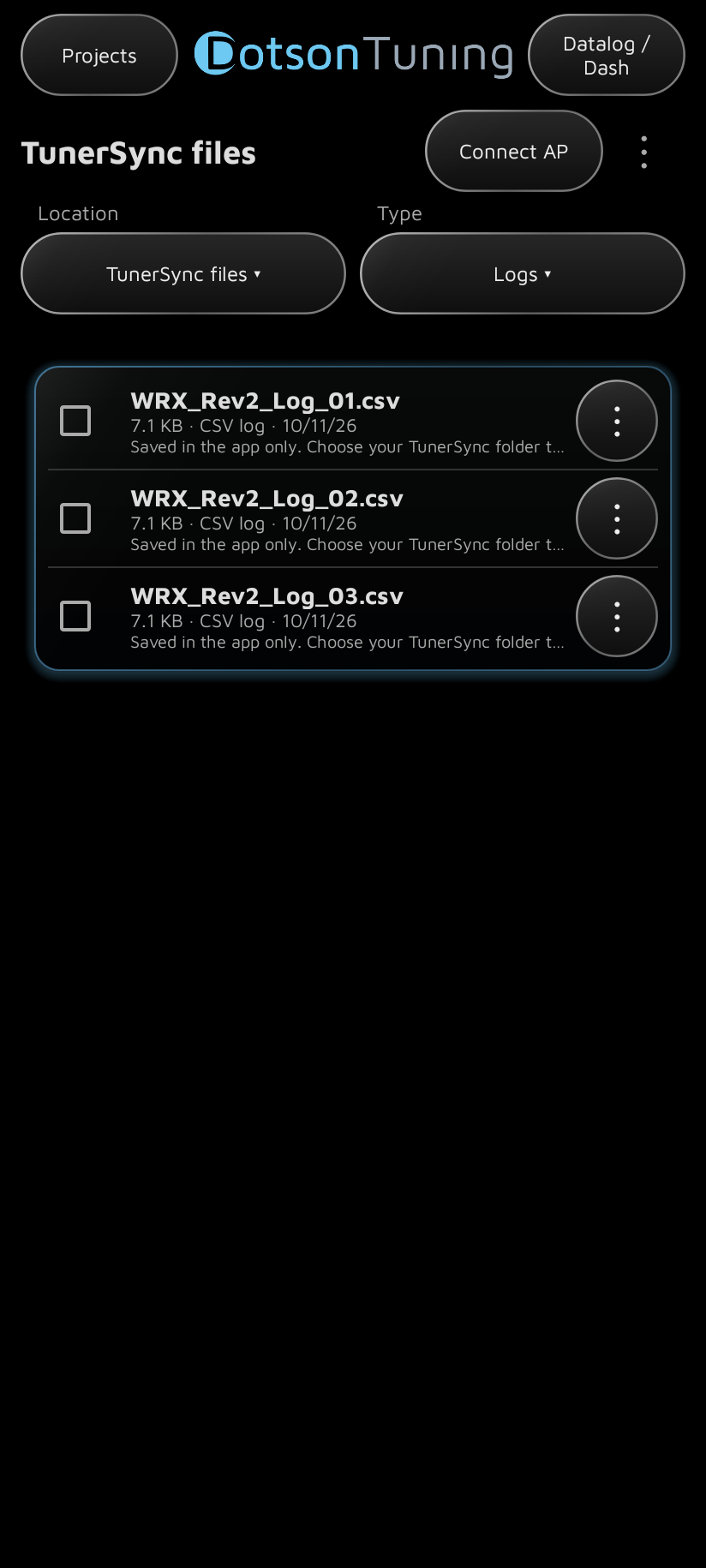
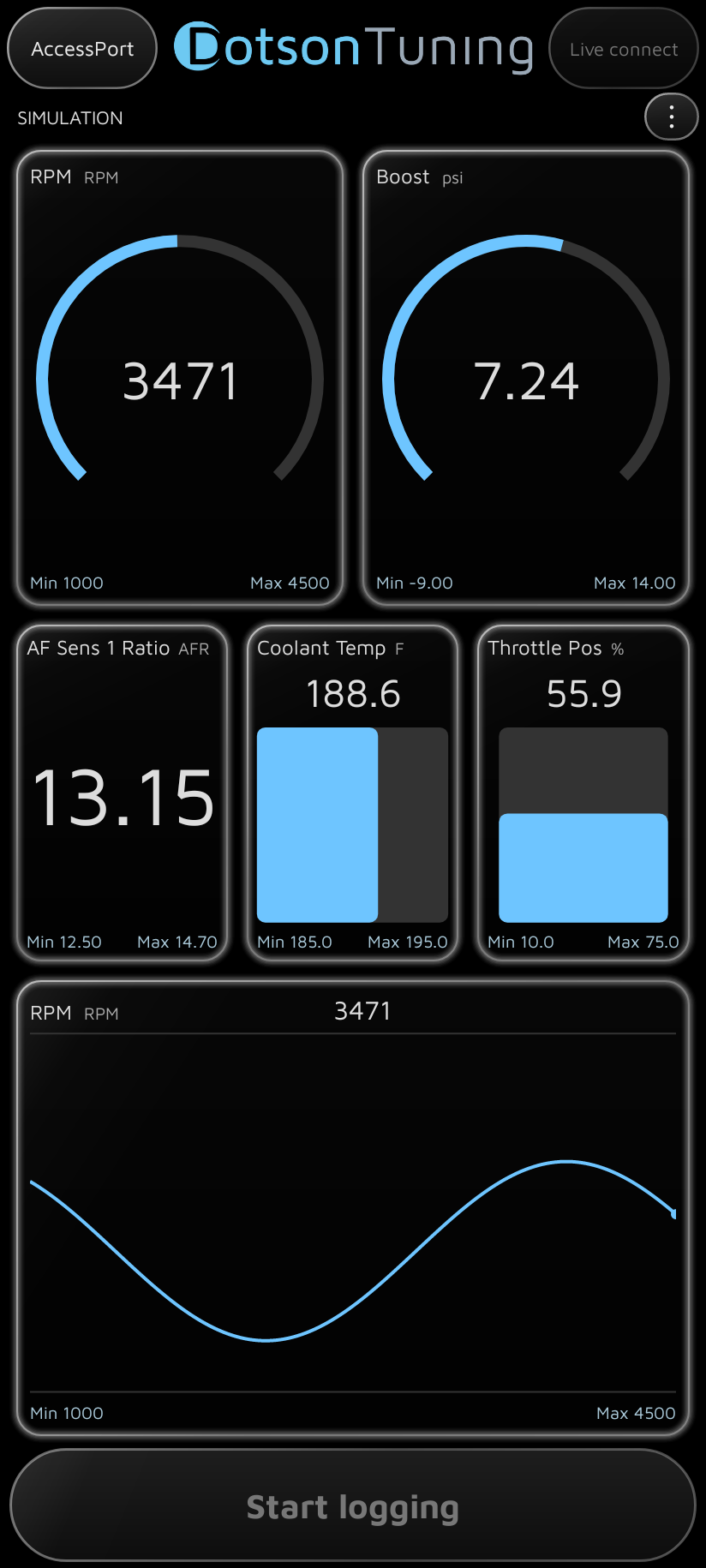
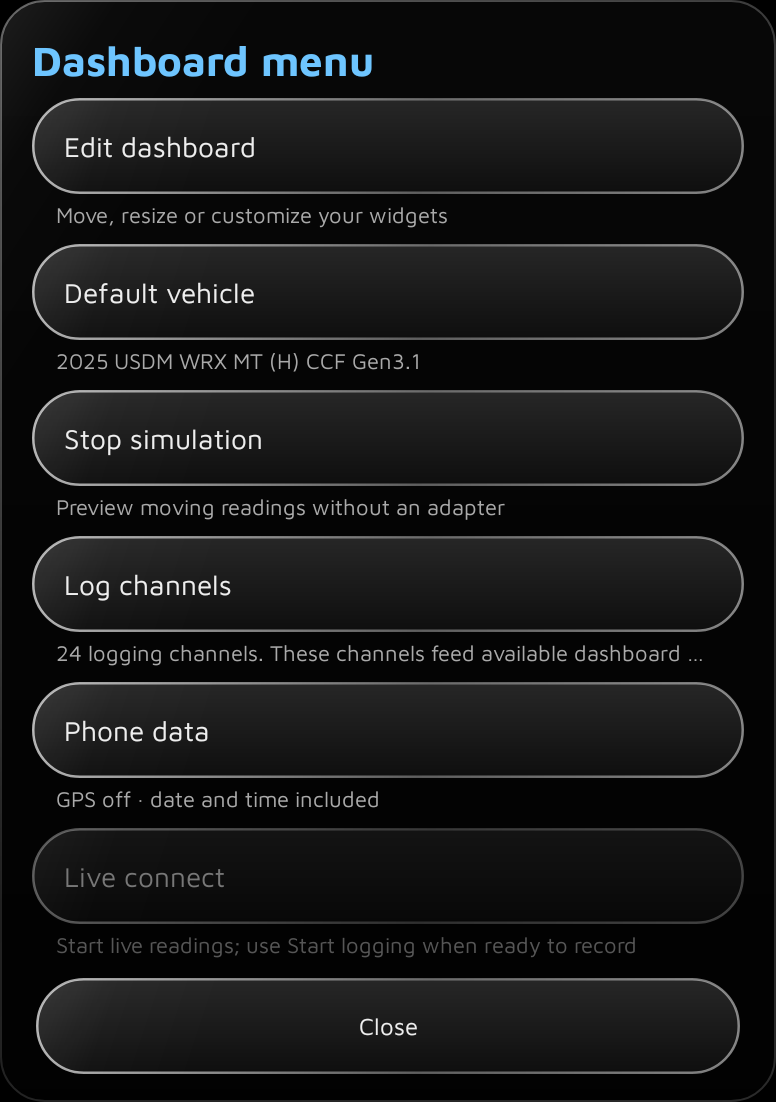
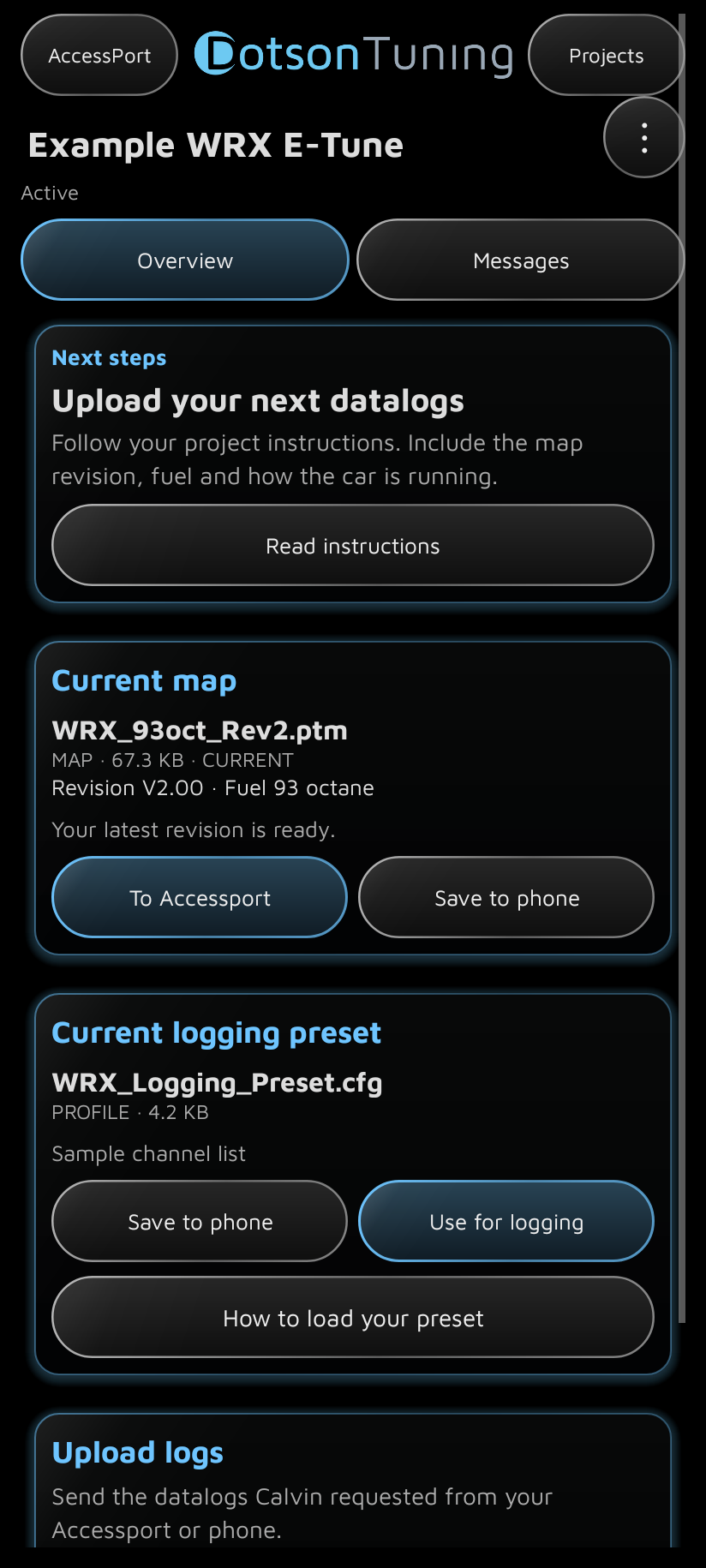
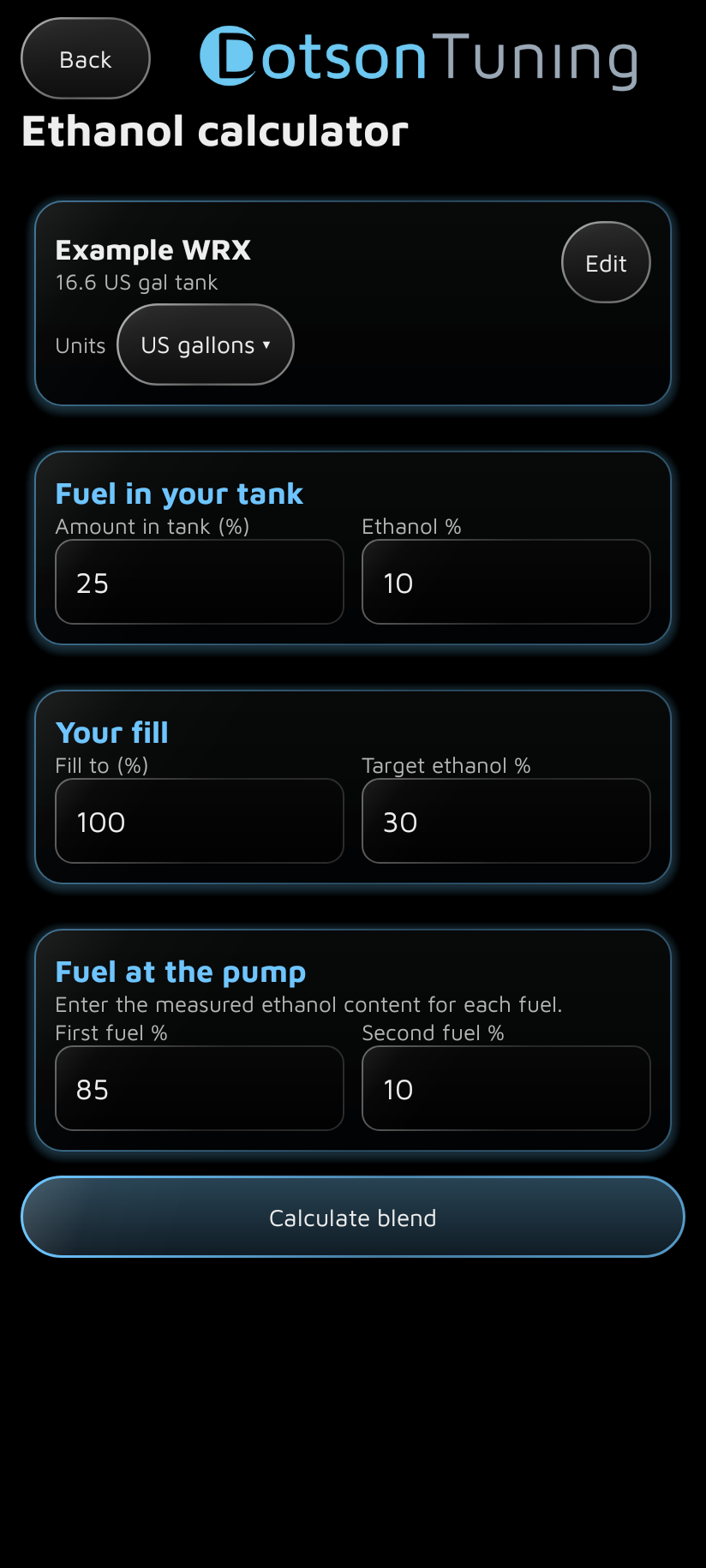
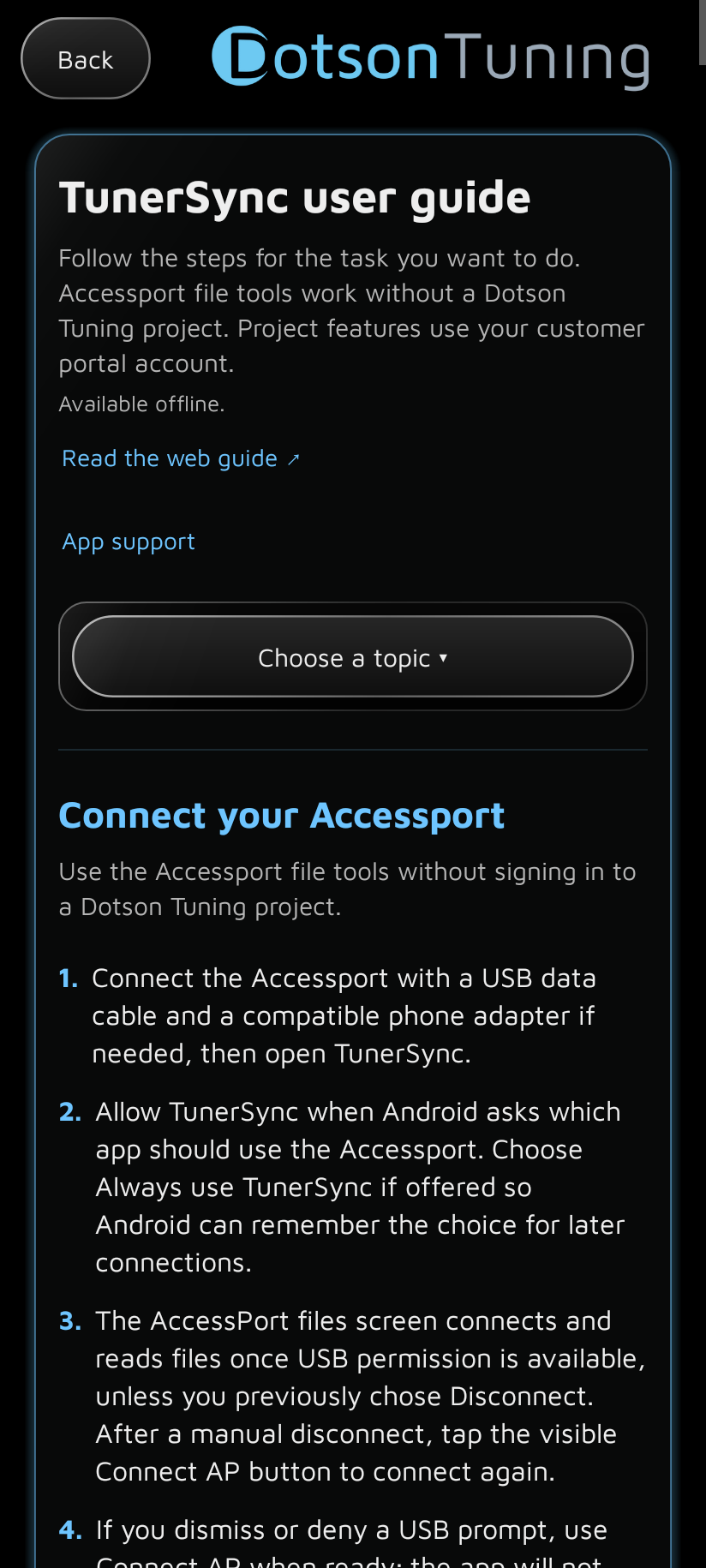
Screenshots from TunerSync 1.0.0, shown with a sample project and files. Dashboard readings are simulated.
Install and connect
- Install from Google Play.Open TunerSync in Google Play on your Android phone and tap Install. When installation finishes, tap Open.
- Connect your Accessport.Use a phone with USB host support, a USB data cable and a compatible adapter if needed. Tap Allow when Android asks, then choose the file location and file type.
- Choose how you work.Use My tuner in the three-dot menu to email your tuner, or Projects → Connect portal account for your Dotson Tuning project. The calculator is in the menu under Ethanol calculator.
Your Dotson Tuning project
- Connect your project.Sign in with the email from your inquiry, invitation or purchase, then approve the app connection.
- Start with Overview.Follow Next steps and complete your vehicle setup.
- Send logs or get your map.Use Upload logs or Current map. Choose files on your phone or connected AP.
- Messages and photos.Open Messages to reply or attach up to four photos. File history is in the project’s three-dot menu.
- Enable alerts.In Projects → Account, choose Turn on project alerts, then Turn on. Allow notifications when Android asks.
Help when you need it
The user guide walks through file transfers, email verification, project uploads and the calculator. Read it here or open User guide from the app’s three-dot menu; the in-app guide works offline.
Open the TunerSync user guide →Already installed? Open TunerSync in Google Play and tap Update when available. Copying a map to the AP does not flash the vehicle. Firmware notices check for updates; use COBB Accessport Manager on a computer to install firmware. If your Dotson project is not linked yet, open its invitation or inquiry email. OTS troubleshooting logs require Calvin’s approval.